-
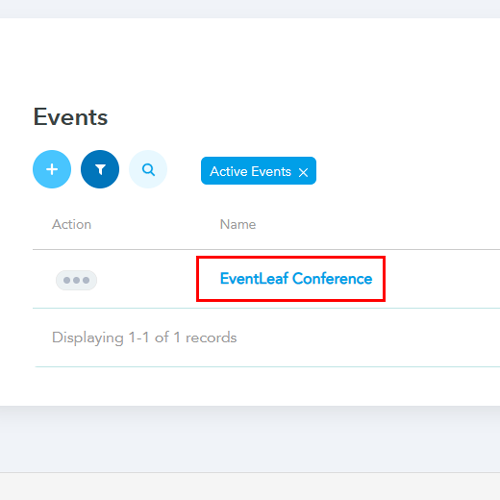
1. Access Your Event Dashboard
Log in to your Eventleaf account and select the specific event you want to manage.
-
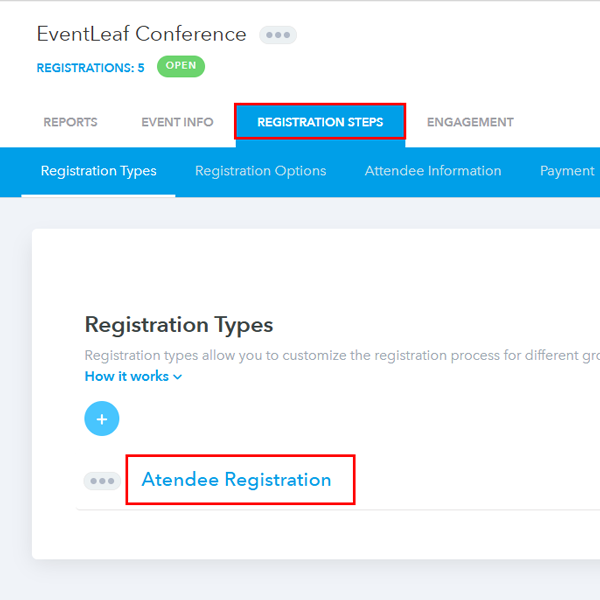
2. Navigate to Registration Steps
Head over to the Registration tab and select Registration Steps. This area acts as the command center for your different attendee groups (such as "VIP," "Speaker," or "General Admission"). Click on the specific group you want to grant guest privileges to.
-
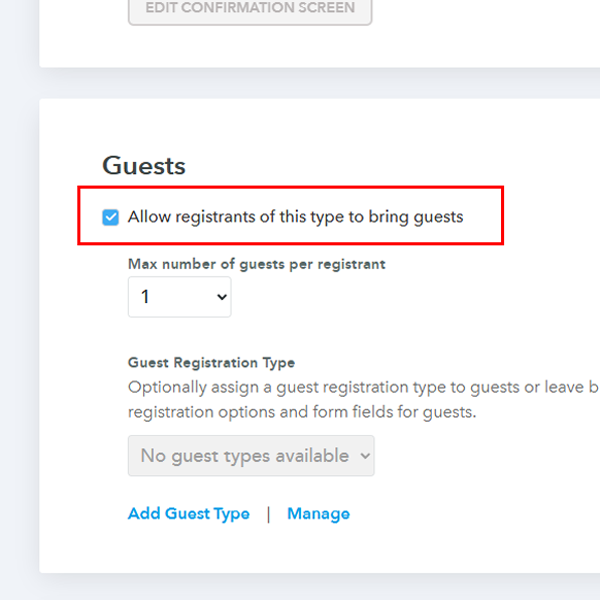
3. Activate the Guest Option
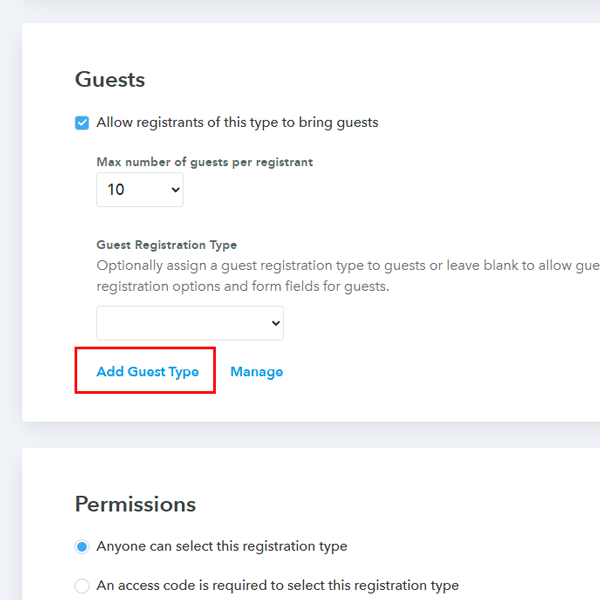
Scroll down the page until you reach the Guest section. You will see a checkbox labeled Allow Registrants of this type to bring guests. Check this box to enable the feature for that group.
-
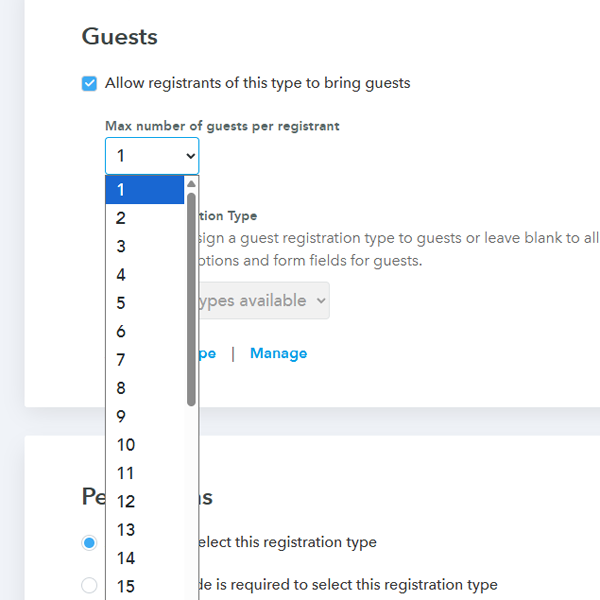
4. Set Guest Limits
Once enabled, you can control the volume of attendees by setting a cap. Click the dropdown menu under Max Number of guests per registrant and select the maximum number of people each attendee can bring.
-
5. Define Guest Registration Types (Optional)
If you want guests to have different registration options or fill out specific form fields (different from the primary registrant), you can add a Guest Registration Type. Click on Add Guest Type.
-
6. Customize the Guest Experience
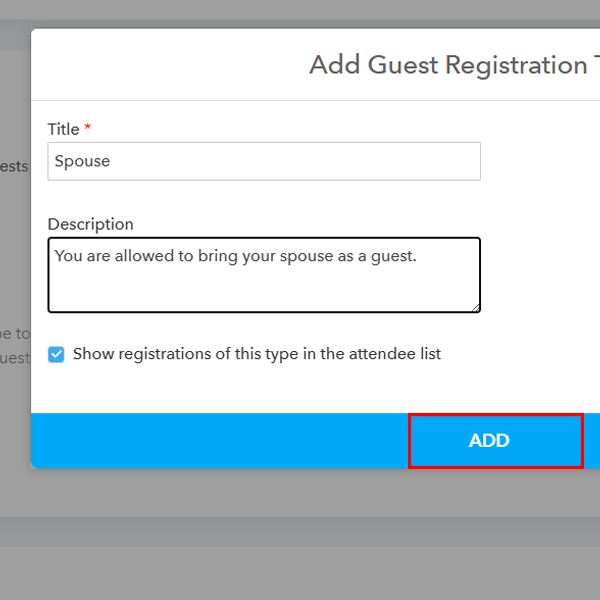
Provide a title and a brief description for this guest type—for example, "Spouse" or "Colleague"—and click the Add button.
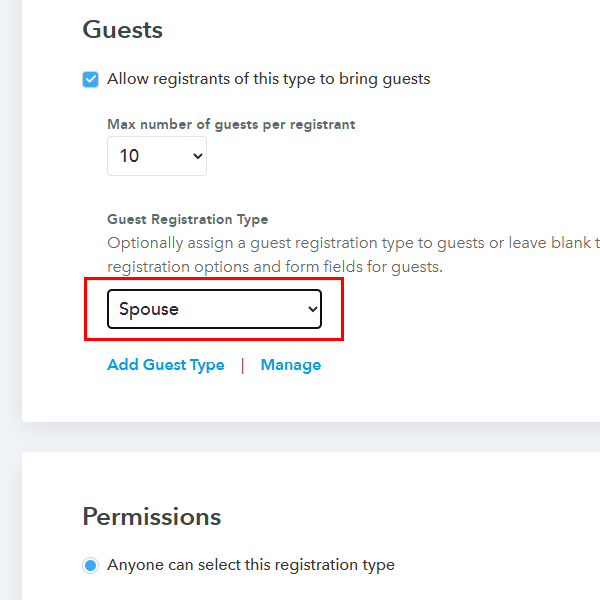
Once saved, this new category (e.g., "Spouse") will appear under the Guest Registration type, allowing you to tailor the data you collect for these specific visitors.
-
Realistic Use Cases for Guest Registration
Knowing how to turn the feature on is one thing; knowing when to use it helps you plan better events.
- Corporate Galas and Award Ceremonies: High-profile attendees often expect to bring a partner or spouse. Using guest registration ensures you have an accurate headcount for catering and seating charts without requiring the guest to create their own separate account.
- Family-Oriented Community Events: For events like "Family Fun Days," allowing a primary registrant to add multiple children as guests keeps the registration process fast and parent-friendly.
- Professional Workshops: Many companies send small teams to training sessions. By enabling guest registrations for the "Lead Employee" type, one person can handle the logistics and payment for their entire group in a single transaction.
Step-by-Step: Enabling Guest Registrations
Refining your registration flow is straightforward. Follow these steps to activate and customize guest options for your specific attendee groups.
Frequently Asked Questions
Ready to simplify your next event?
Stop chasing individual registrations and let your attendees do the work for you. Start your free trial or request a personalized demo to see how Eventleaf handles guest management at scale.