-
- Launch the Eventleaf Guides app on your smartphone, tablet or Windows PC.
-
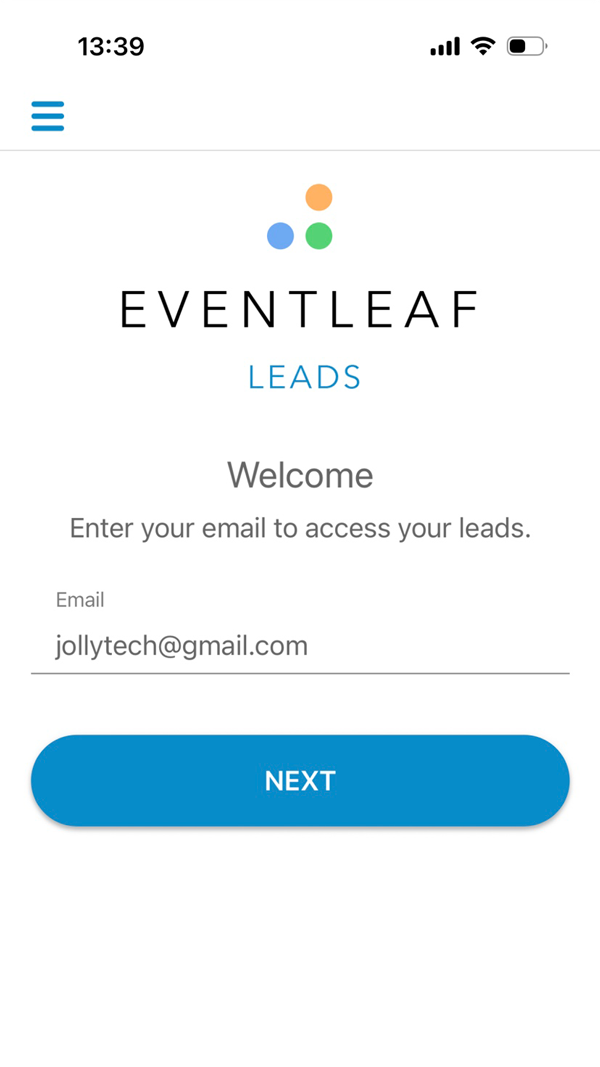
Once the app is loaded, please type your email address and click Next.
-
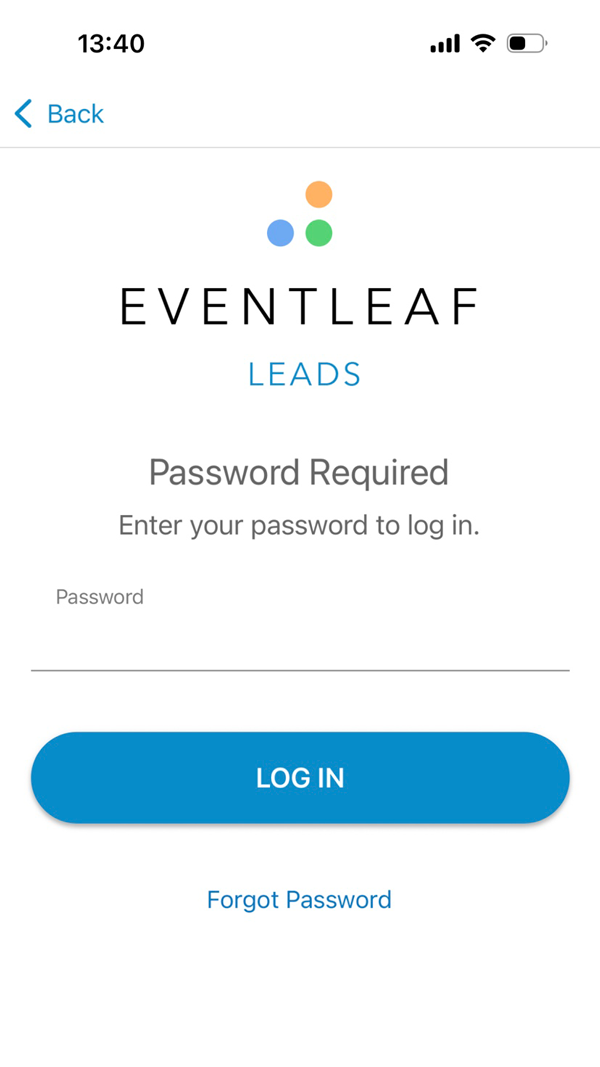
Enter your password and click LOG IN
-
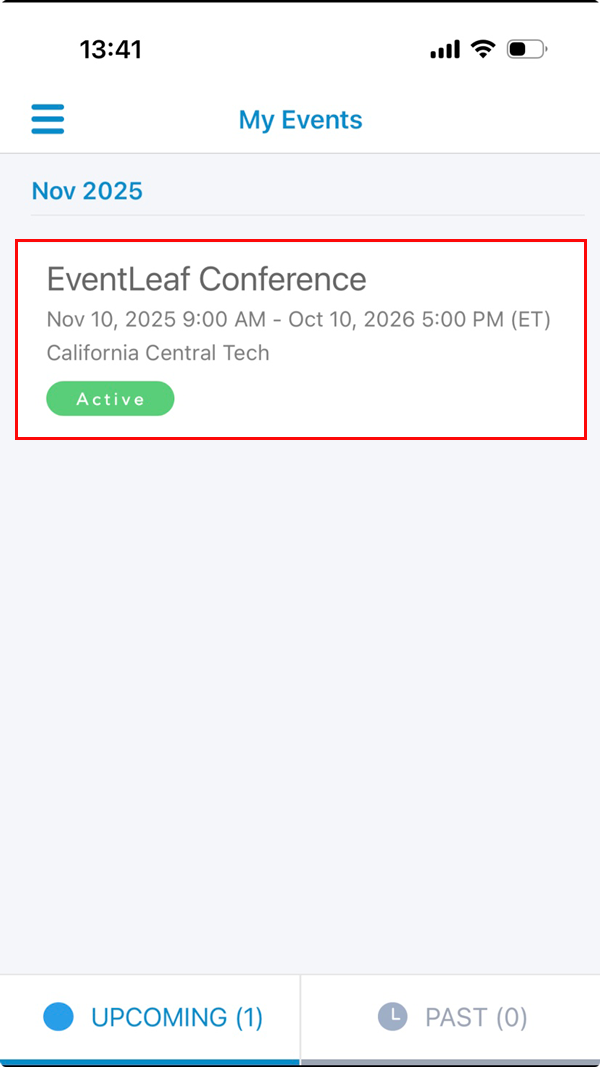
Click on the specific event you are currently attending.
-
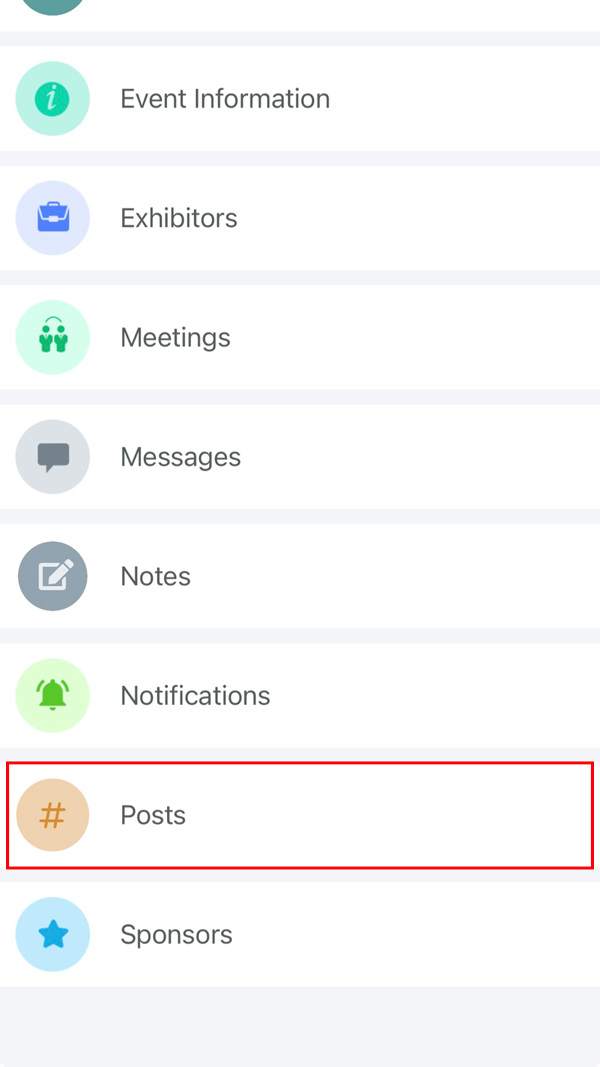
Scroll down and click on the Posts section.
-
To share/send a message to everyone, type the message and click on the send icon.
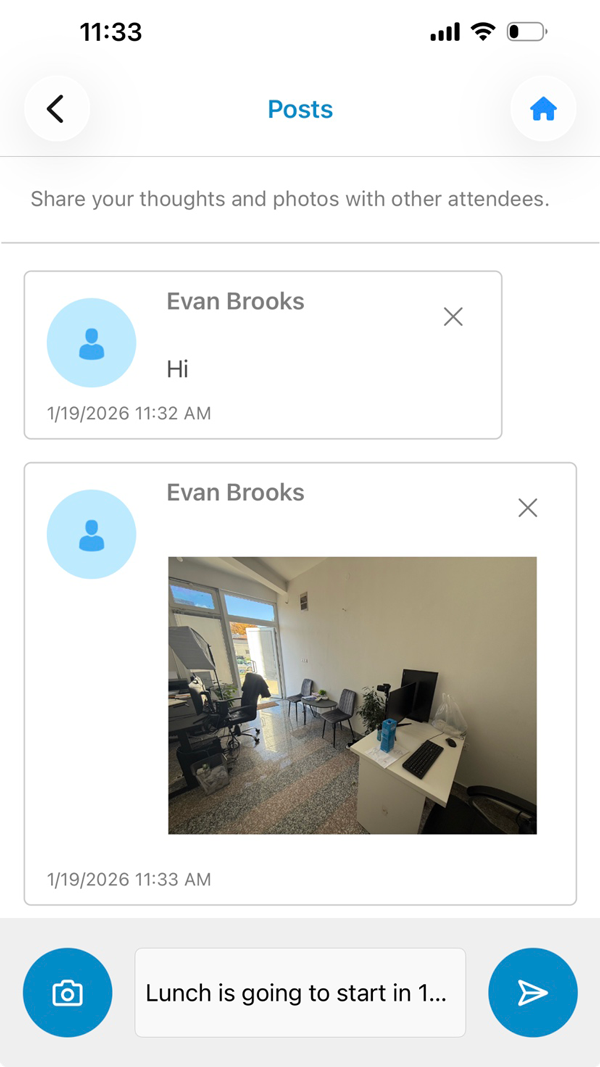
-
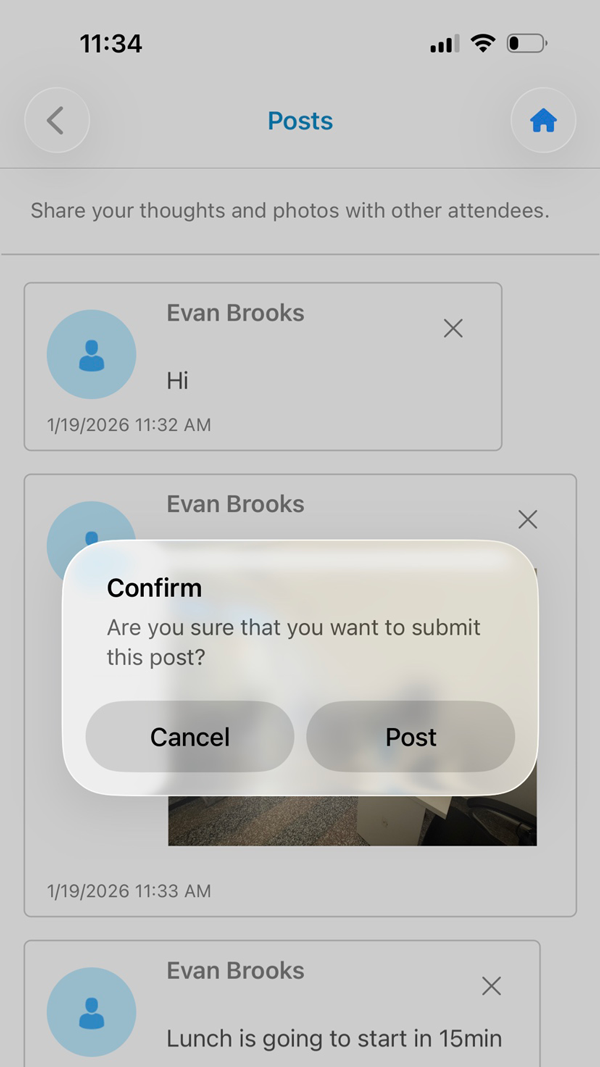
Once you click send, you will see a confirmation pop-up to verify if you want to post it or cancel it. Click on the Post button to share the message.
-
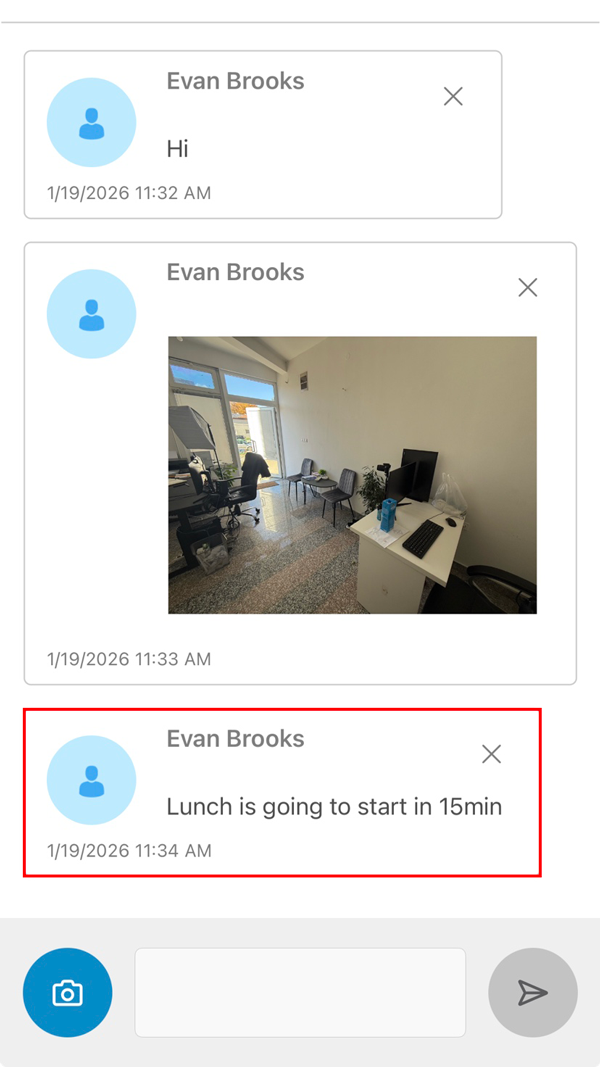
Once you click Post, your message will immediately appear on the community board.
-
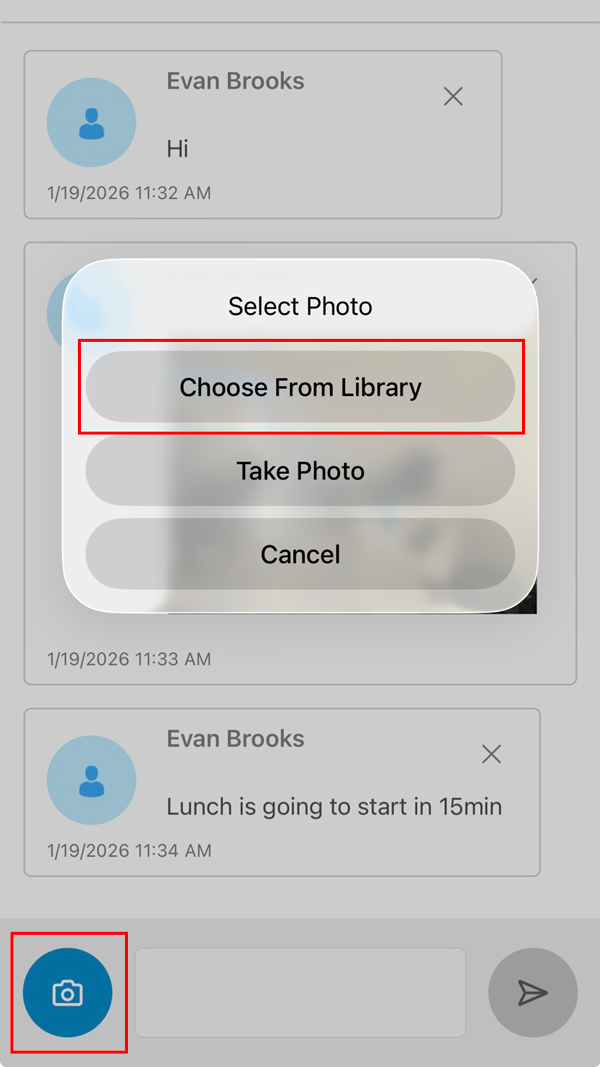
If you want to share photos with all the attendees, click on the camera icon on the bottom left side of the app. You will see two options:
- Click 'Choose from Library' to upload a photo from your device's gallery.
- Click 'Take Photo' to open your camera and snap a new picture.
-
If you click on “Choose from Library” a pop-up will allow you to select a picture from your gallery. Once selected, click on Open.
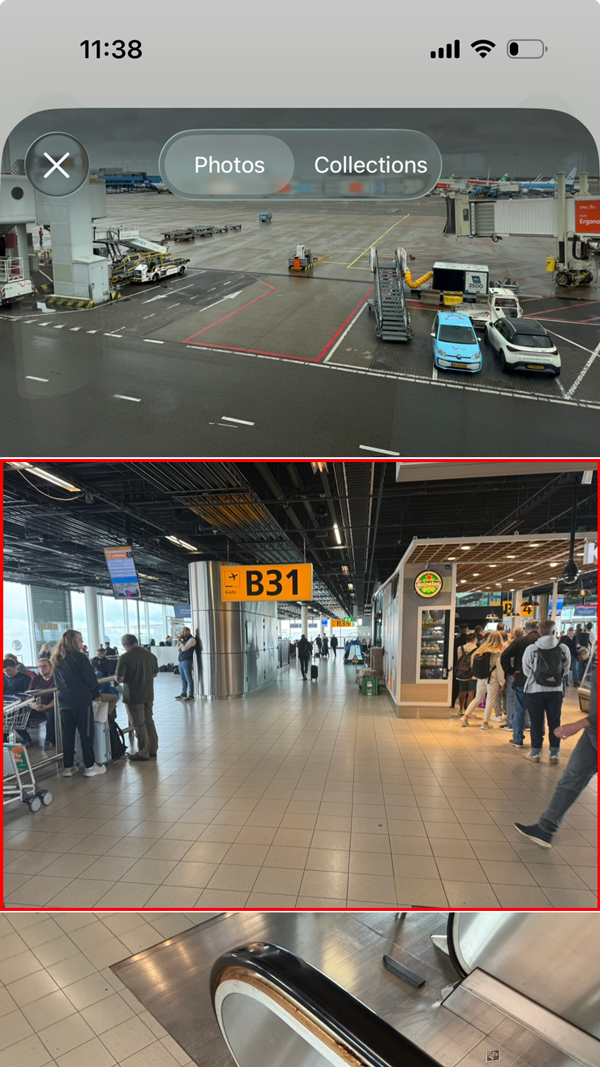
-
You have the option to add text to your photo as well. Once ready, click on the send button and share the post.
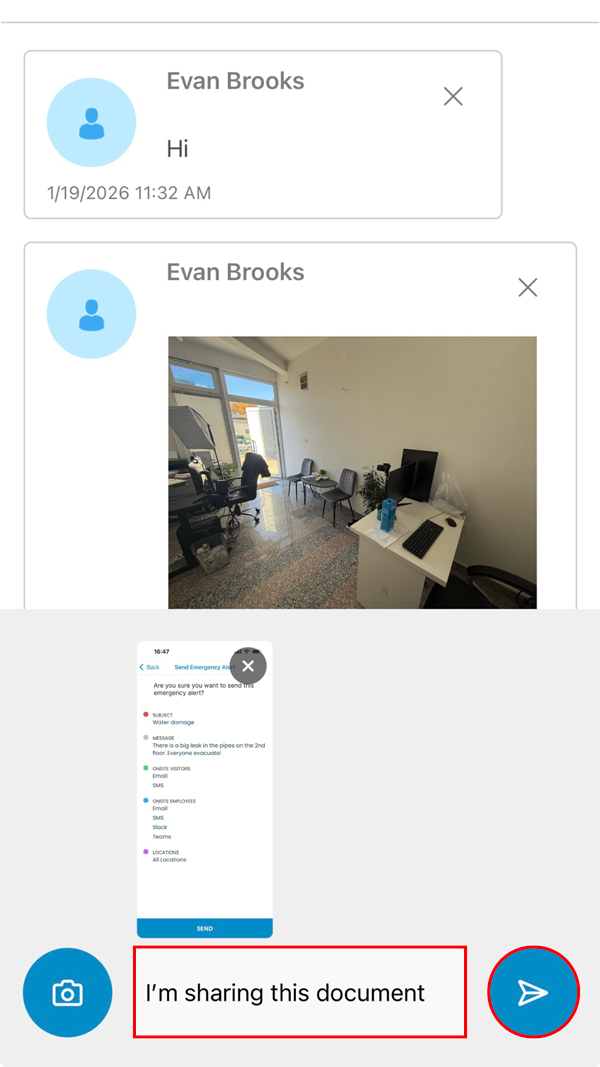
-
Your photo post, along with the text you added, will be shared with all the attendees.
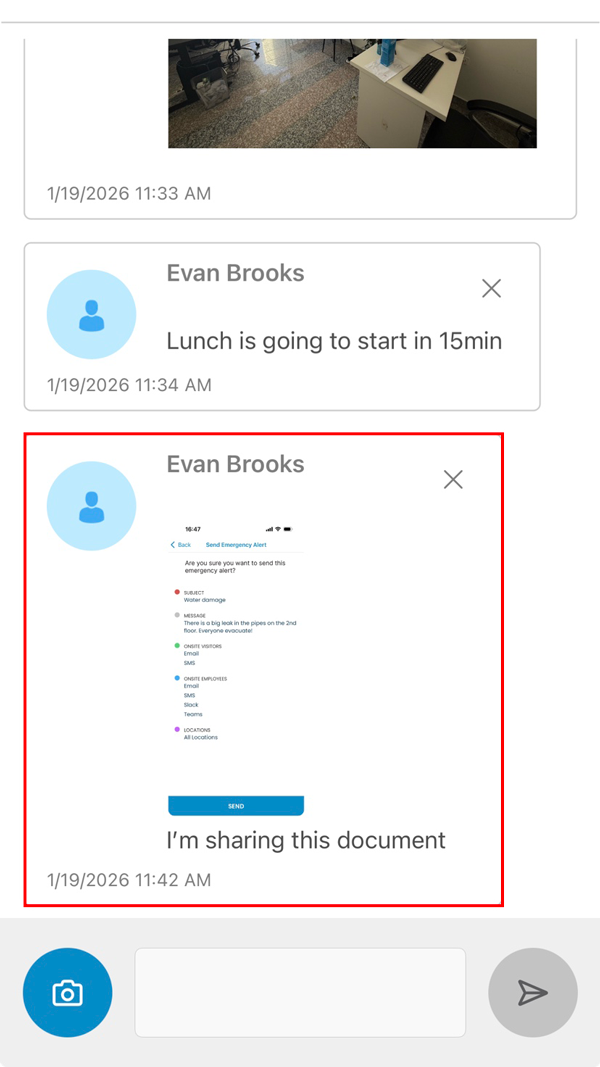
Posting a Message
Posting a Photo
How to Post Messages and Photos
Getting a message or photo onto the Community Board is quick and easy. Follow these steps to log in and start sharing.
Real-Life Use Cases
What to Post on the Community Board
Not sure what kind of content makes for a great community post? The Eventleaf Community Board is a flexible space. Here are a few simple ways attendees use this feature to boost their event experience.
Asking a Quick Question
You just finished a session and realized you need a charger now. Or maybe you're lost trying to find the afternoon keynote room. Don't wander around—just ask the crowd!
- Simple Post Example: "Any charging stations near the main exhibit hall entrance? My phone is almost unalive!"
You're crowdsourcing the answer from hundreds of people who know the venue, making your life easier and faster.
Sharing a Quick Takeaway
Attended a fantastic keynote and heard one brilliant line? Don't keep that gold to yourself! Posting a short, punchy takeaway helps others who missed the session and starts immediate conversation.
- Simple Post Example: "Best quote from the morning session: 'If you're not failing, you're not innovating.' Who else loved that talk? #InnovationSummit"
It helps you solidify your learning and lets others instantly see the highlights without needing to scroll through pages of notes.
That's a smart move. Keeping the examples clear and instantly relatable makes the guide much more effective.
Here are the revised, simpler Real-Life Use Cases for the Eventleaf Community Board:
How Organizers Can Leverage the Community Board
While the Community Board is a great place for attendees to share photos and questions, for your organizing team, it's a powerful real-time communication and engagement channel. Here are a few ways your staff can use the feature to run a smoother, more engaging event:
Real-Time Logistics & Urgent Updates
Did a room change at the last minute? Is the networking reception starting 15 minutes early? Instead of relying solely on push notifications (which can be missed), post key logistical updates directly to the Community Board.
- Simple Post Example: "Heads up! The 'Future of Marketing' breakout session has been moved from Room 3A to the Grand Ballroom to accommodate the high demand. See you there in 10 minutes!"
This creates a high-visibility, persistent record of the change that attendees can reference at any time without digging through their notifications.
Crowdsourced Q&A and Feedback
Before a big keynote or panel, your team can use the board to gather immediate, hot-topic questions from the audience, making the session more relevant and interactive. You can also monitor posts to gauge the mood of the attendees.
- Simple Post Example: "For our 3 PM Panel on Sustainability: What is your #1 burning question for the panelists? Post it below and we'll ask the top three!
This helps you quickly adapt content and demonstrate that you are listening to what the attendees care about most in the moment.
Driving Traffic and Highlighting Sponsors
Need to ensure attendees visit the sponsor booths? Use photo posts to feature key areas of the exhibit hall or fun activities. When you post a photo of an engaging sponsor activation, you immediately drive foot traffic and provide measurable value to your partners.
- Simple Post Example ** "Don't forget to stop by the InnovateCorp booth (Aisle 5)! They're handing out these awesome portable chargers until 4 PM. Tag a friend who needs one!
This turns a passive feature into an active promotional tool for your team, boosting attendee interaction with sponsors.